


 Using Nuvolos
⚠️ IMPORTANT: Follow the instructions on this link if you don’t have a Nuvolos Cloud account yet.
Using Nuvolos
If you already have a Nuvolos account, simply go to the Nuvolos website and login using the credentials you provided when you created the Nuvolos account.
Access the platform. After logging in, you will be able to access the platform. You will see a screen similar to the one below:
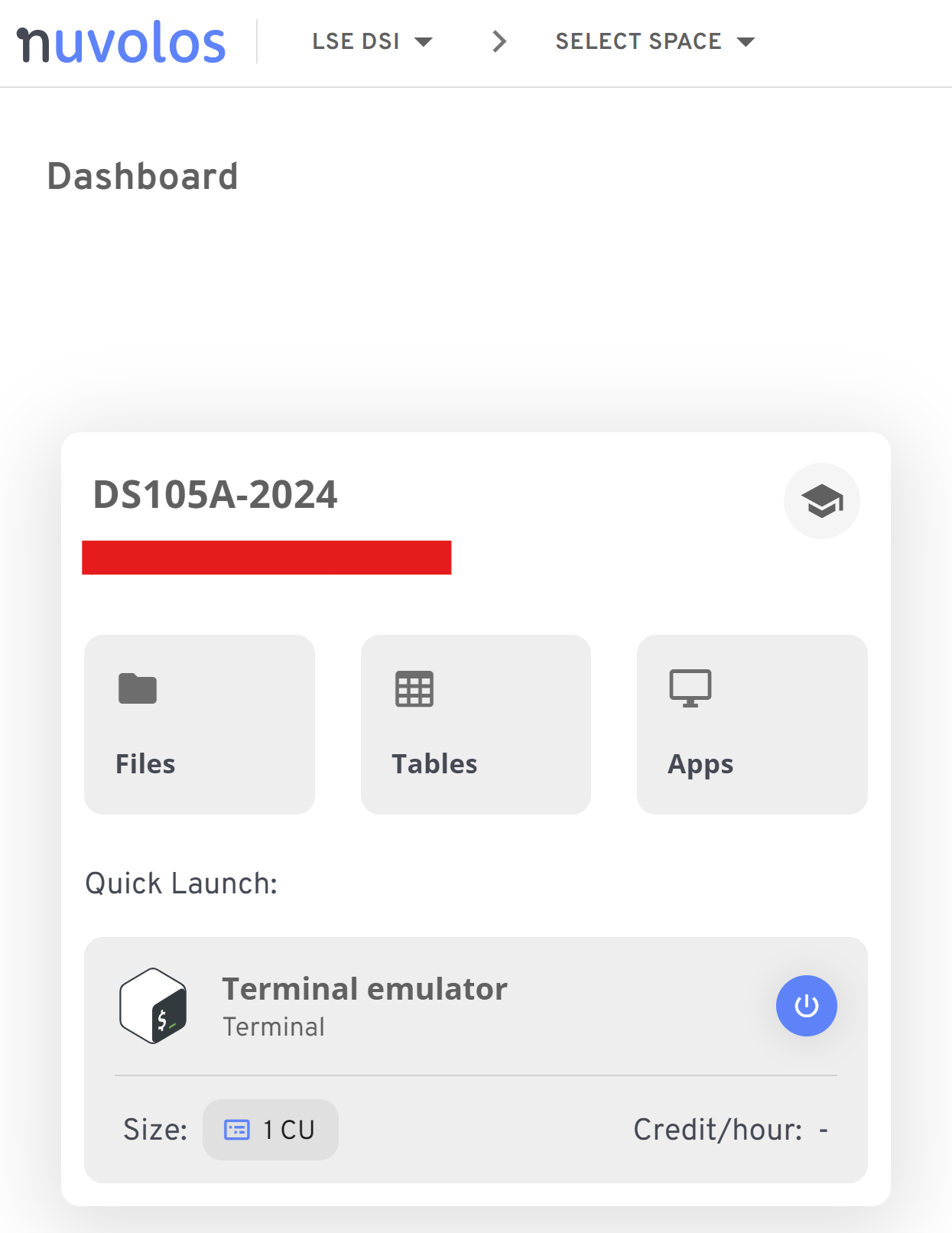
Figure 1. Your Nuvolos frontpage will have a ‘Space’ dedicated to this course. ⚠️ Warning: if the screenshot shows ‘DS105’ instead of ‘DS205’, it’s because I haven’t found the time to recreate the screenshot. Click on the ‘DS205-2025-2026’ word to access the Overview page.
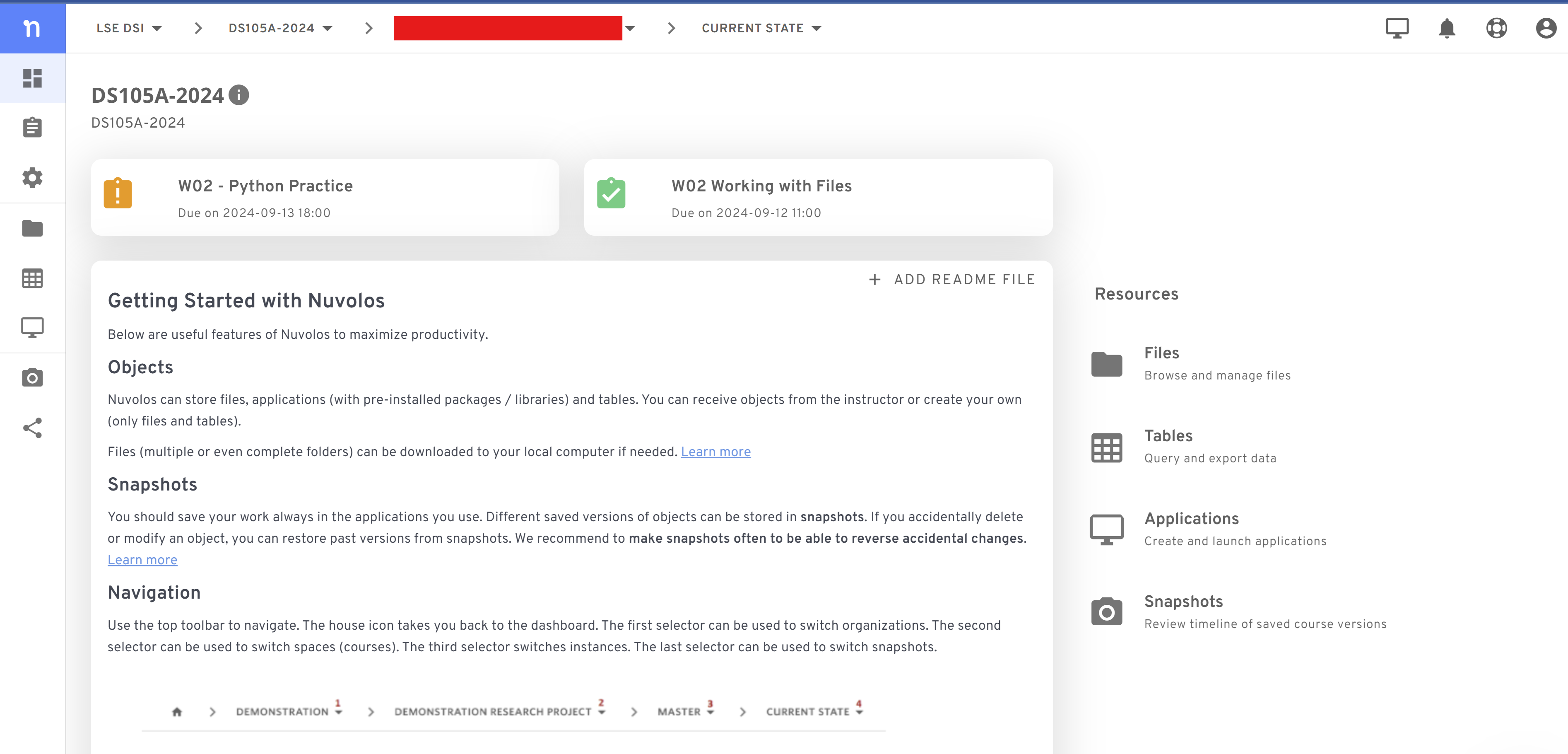
Figure 2. The Overview page has a list of all available assignments (if any) at the top and a bit of information about how to use the platform. ⚠️ Warning: if the screenshot shows ‘DS105’ instead of ‘DS205’, it’s because I haven’t found the time to recreate the screenshot.
Navigate the files
The Operating System you are using on Nuvolos is Linux. This means you will be on an unfamiliar file system. The home directory will be different than the one you discovered on your computer.
💡 Tip: Revisit the 🗣️ W01 Lecture for more context on file systems and working with code.
When working on the Nuvolos Terminal app, you will have to use UNIX commands – even if your computer runs on Windows. Check the  Terminal Cheat Sheet page for a list of the most common UNIX commands.
Click on the ‘Files’ tab to see the files and folders available to you. You can create new files and folders, upload and download files from there.
Run applications like the Terminal or VS Code
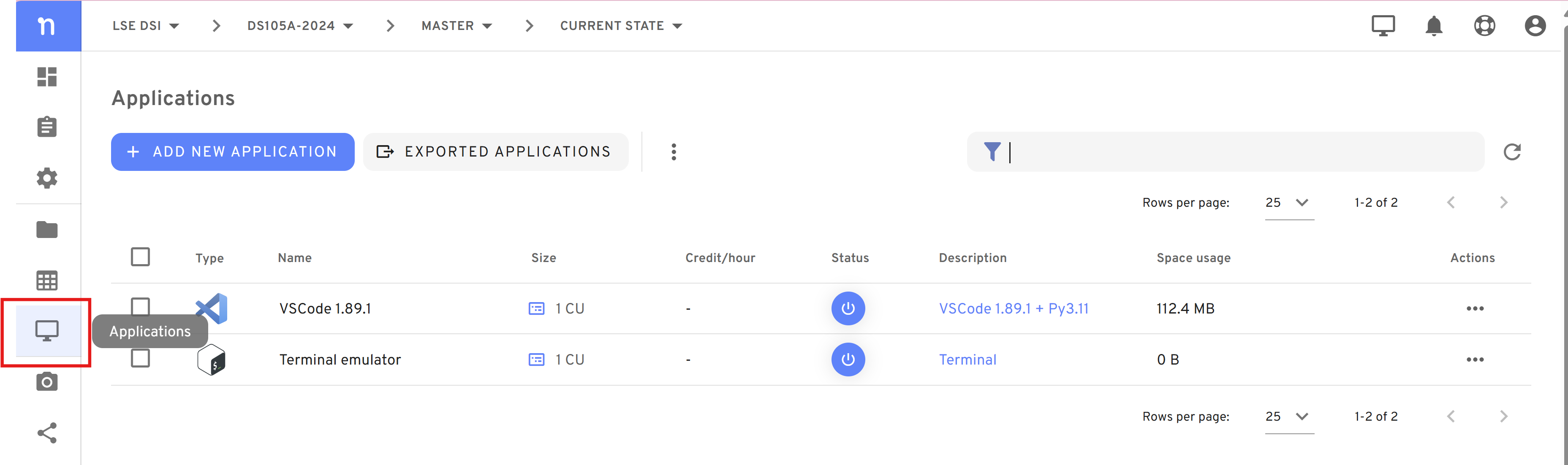
Visit the ‘Applications’ tab to see the available apps. You should see the Terminal app enabled by default and eventually other apps like VS Code.
Run Python
Nuvolos already comes with Python installed and pre-configured. Simply open the Terminal or the VS Code app and type python to start the Python interpreter.
💡 Tip: The 💻 W02 Lab will guide you through running Python scripts on Nuvolos.
Run Jupyter Notebooks
We will run Jupyter Notebooks exclusively via the VS Code application - whether on Nuvolos or on your computer.