
 Hand in an Assignment on Nuvolos
This page is the hand-in walkthrough for graded work you submit through Nuvolos Assignments (the midterm, later coursework, and any other hand-in we set up the same way). The screenshots below use the Midterm Project as the example. Swap in the assignment name and folder from your brief when you submit something else. If you still need an account or help opening the ME204-2026 space, start with Nuvolos First Time and Using Nuvolos.
⚠️ IMPORTANT: In the Hand-in identifier field, type your LSE ID (the same number at the top of your README.md). Do not leave the field blank.
🎯 ACTION POINTS
Put everything under the assignment folder. Make sure the files and folders you need are under
/files/assignments/<current_assignment>/. For the midterm that path is/files/assignments/midterm. Keep the layout organised as in the assignment brief (README.md, notebooks or scripts,data/,figures/,.env, or whatever that brief asks for).When you hand in, Nuvolos hands in that whole folder to be marked.
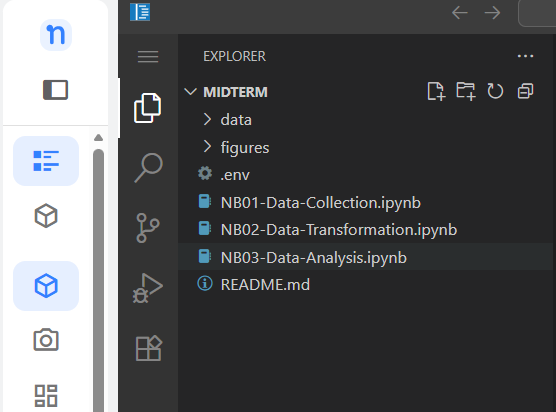
Figure 1. Example: the midterm folder in the VS Code explorer on Nuvolos. Open Assignments in the Nuvolos menu. Click the Nuvolos logo (or the sidebar that lists Spaces and your instance), then click Assignments. This is the Nuvolos menu, not the VS Code activity bar.
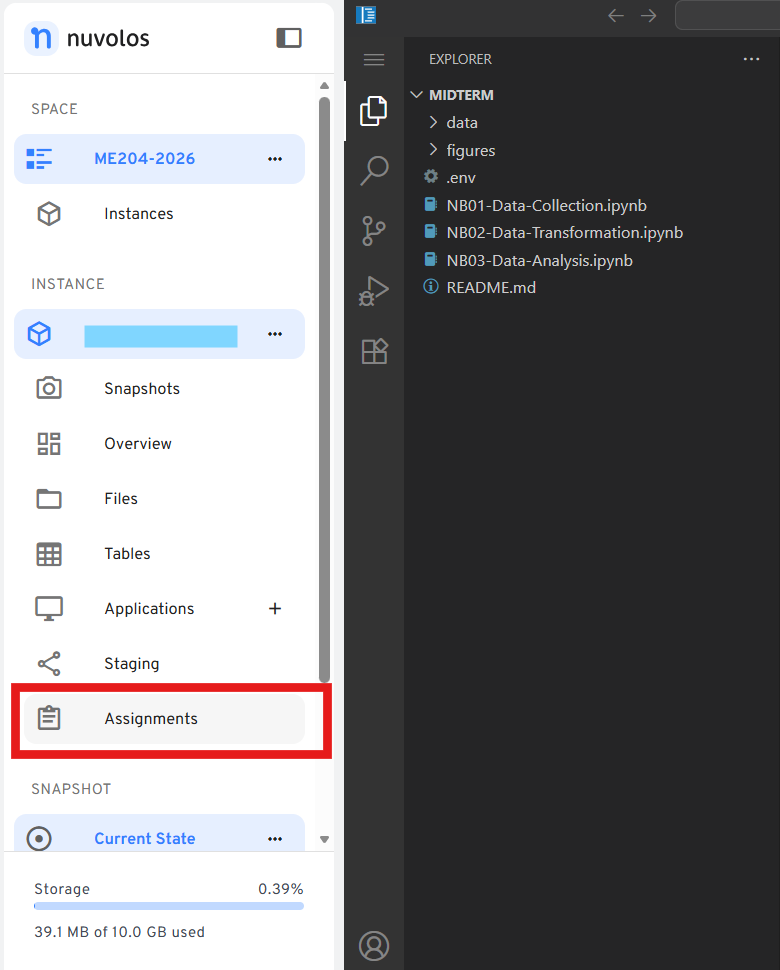
Figure 2. The Nuvolos left menu with Assignments selected. Start Hand-in for your assignment. Find the row that matches the assignment in your brief (in the screenshots: ME204 2026 - MidTerm Project), open the Actions menu (
...), and choose Hand-in.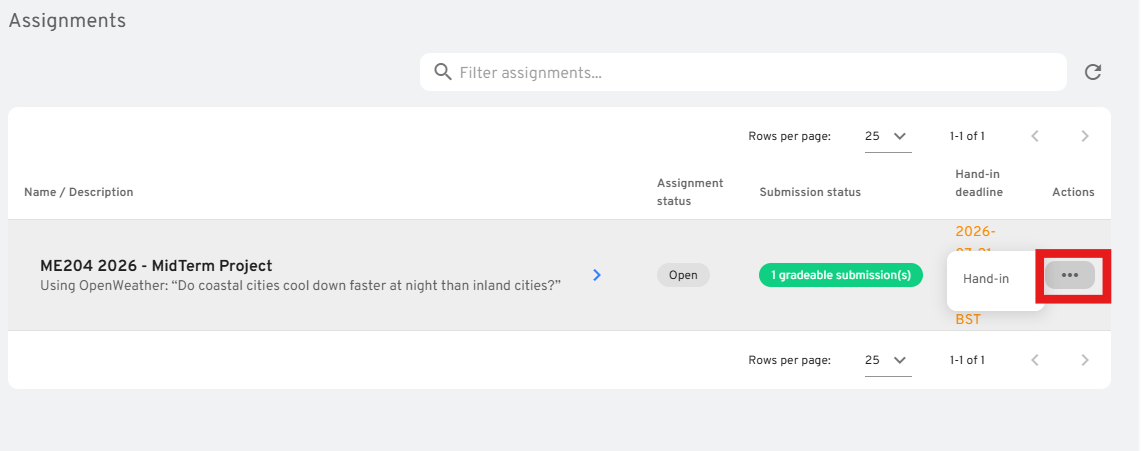
Figure 3. Actions menu on an assignment row with Hand-in. Enter your LSE ID and hand in. The dialog lists the folder Nuvolos will submit. That should match
/files/assignments/<current_assignment>/from step 1 (for the midterm:assignments/midterm).Type your LSE ID in the Hand-in identifier field, then click HAND-IN.
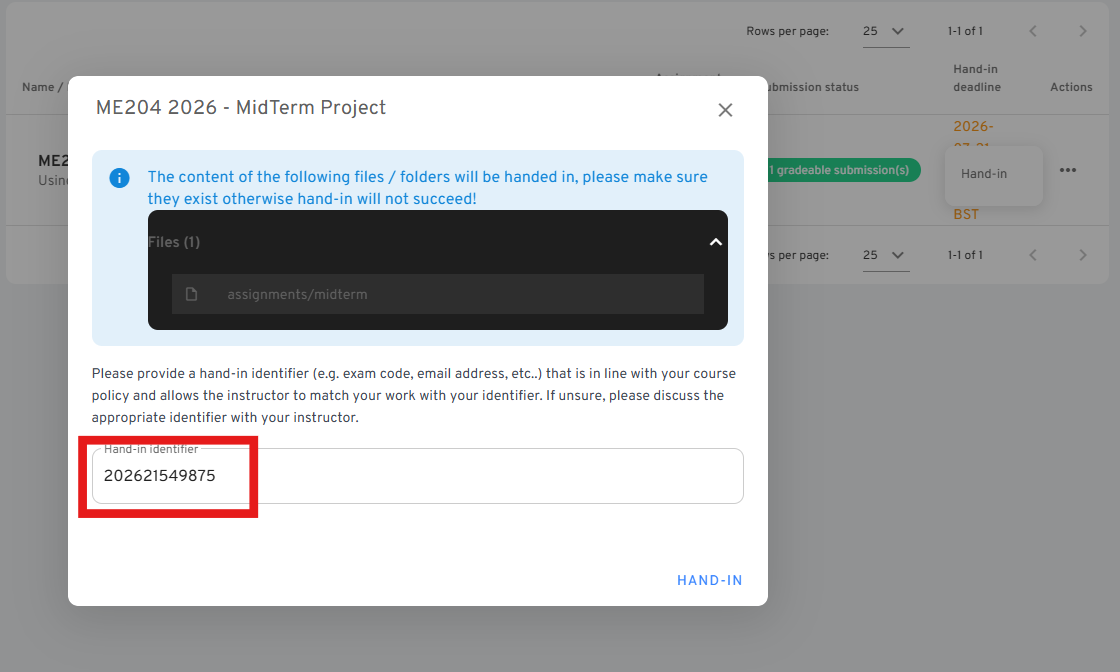
Figure 4. Hand-in modal: the submitted folder and the identifier field. Wait until Status is Completed. You should see a green check and Status: Completed. Click CLOSE.
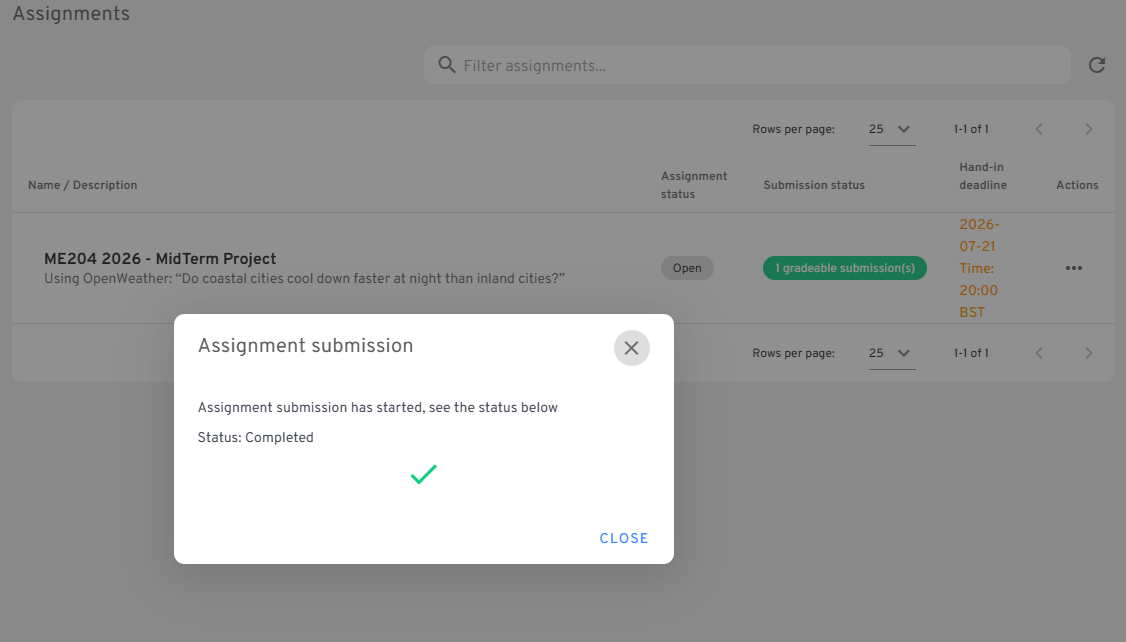
Figure 5. Assignment submission dialog showing Status: Completed. Check the confirmation email. Nuvolos emails you when the task finishes. Confirm that submission succeeded and that the listed path is under
files/assignments/for the assignment you meant to hand in.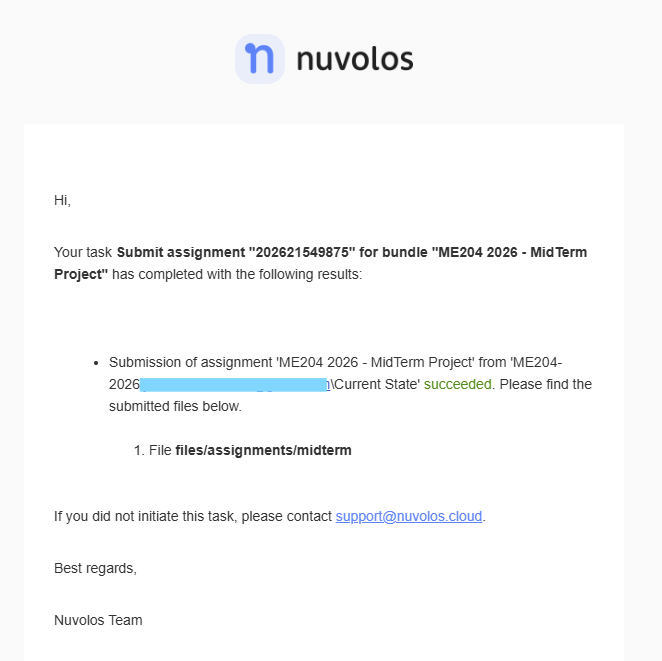
Figure 6. Confirmation email after a successful hand-in.
You can hand in more than once before the deadline in the assignment brief, and we mark the latest version. Nuvolos blocks hand-ins after that time, so do not leave this to the last hour.