
First Time Accessing the Nuvolos Cloud Platform
We will be using the  Nuvolos cloud platform for our coding exercises in ME204. This guide will help you set up your account for the first time.
⚠️ IMPORTANT
Please follow the steps below very carefully to avoid the issues others before you had. If none of the steps below works for you, ask the class teacher during the lab and show a screenshot of any error message when you can.
📋 BROWSER COMPATIBILITY:
We have been informed that Nuvolos works best with the following browsers:
- Mac users: Safari works best. Firefox may have issues with Terminal and VSCode apps.
- Windows/Linux users: Chrome or Edge recommended.
🎯 ACTION POINTS
- Copy the invitation link and paste it on an incognito window. Doing so in incognito mode is important to avoid issues we have encountered before.
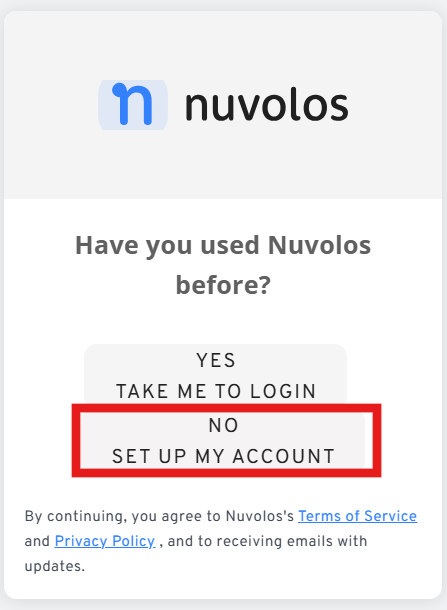
- When asked, click ‘No’ to say you don’t have a Nuvolos account yet.
Ignore the ‘Access through your institution’ option and type an e-mail address instead:
Ideally, you should use your LSE e-mail address, but if you tried to create an account in the past using ‘login via your institution’ you might have issues. In this case, use a different e-mail address to create the account.
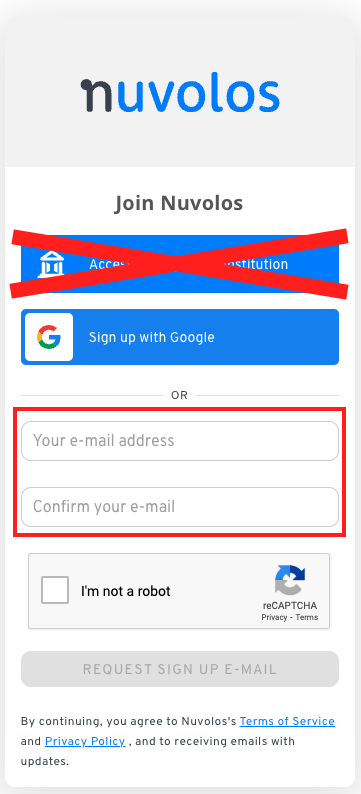
Figure 2. Fill in the details of your LSE e-mail address and ‘request sign up e-mail’ Click “I’m not a robot” if you are not a robot.
Check your e-mail inbox for the invitation e-mail.
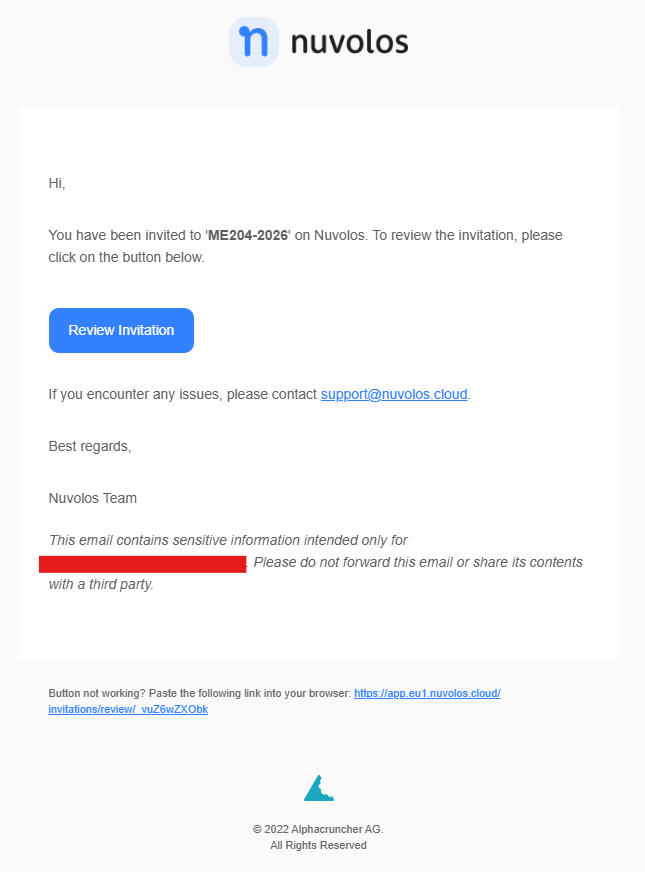
Figure 3. You will get an e-mail inviting you to ME204-2026 with a Review Invitation button. It should be fine to click the Review Invitation button, but I would recommend copying the link from the e-mail and pasting it into an incognito window again (just to be safe).
Configure your name and password. After you open the invitation, you will see the Join Nuvolos page for the ME204-2026 space.
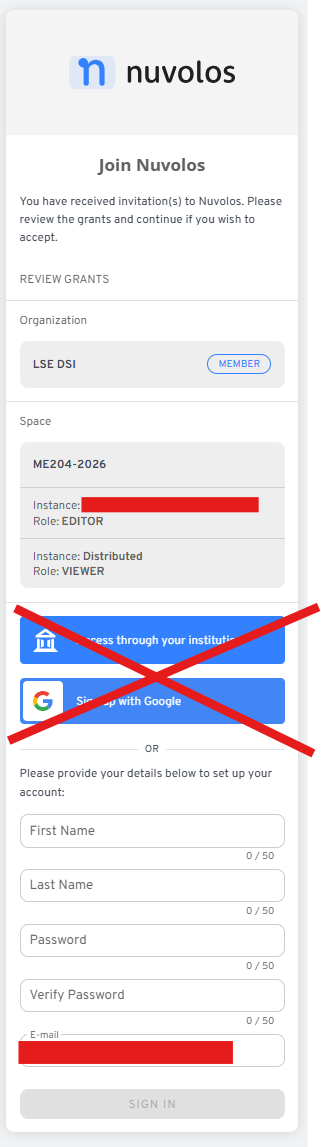
Figure 4. Ignore Access through your institution and Sign up with Google. Fill in First Name, Last Name, Password, and Verify Password, then click Sign In. Then click on ‘Sign In’. You should see a new screen with a loading icon.
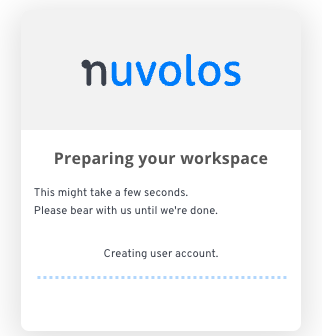
Figure 5. You should see a loading screen after you click ‘Sign In’. You will be asked to type your username and password again. Then, another loading screen will appear. It might take a couple of minutes but eventually you will be able to access the platform.
You are now ready to start Using Nuvolos for our labs. If you encounter any issues, ask the class teacher during the lab and show a screenshot when you can.