Week 08
🐼 Pandas Workshop: Reshaping, Pivoting, and Merging

DS105W – Data for Data Science

🗓️ 12 Mar 2026

Hour 1: 🐼 Pandas Reshaping & Merging Workshop

Last week you collected TfL journey data and flattened nested JSON with json_normalize().

This week you learn four new tools to reshape and combine that data for analysis.

Today’s toolkit

Tool What it does When you need it
1️⃣ pd.concat() Stack DataFrames vertically Combining route tables from separate files
2️⃣ .melt() Reshape wide → long Making summary tables plot-ready for seaborn
3️⃣ .pivot_table() Reshape long → wide Building route × time-band summary tables
4️⃣ pd.merge() Connect DataFrames by a shared key Adding ONS postcode context to your journey data

All four directly support your ✍️ Mini-Project 2 NB02 (data transformation).

1️⃣ pd.concat(): Stacking DataFrames

You collected journey data for different routes and saved them as separate files in data/raw/. Now you need one DataFrame.

What pd.concat() does

df_all = pd.concat([df_barking, df_richmond], ignore_index=True)

BEFORE: two DataFrames

df_barking:

destination time_band duration_min
0 Barking peak 62
1 Barking off-peak 48

df_richmond:

destination time_band duration_min
0 Richmond peak 44
1 Richmond off-peak 35

AFTER pd.concat()

destination time_band duration_min
0 Barking peak 62
1 Barking off-peak 48
2 Richmond peak 44
3 Richmond off-peak 35

💡 NOTE: the parameter ignore_index=True is what resets the index to 0, 1, 2, 3, avoiding the situation leading to the confusion of having duplicate indices: 0, 1, 0, 1.

Making sense of the axis parameter (stacking rows)

When you set axis=0 (default), you stack rows:

pd.concat([df_a, df_b], axis=0)
destination time_band duration_min
0 Barking peak 62
1 Barking off-peak 48
2 Richmond peak 44
3 Richmond off-peak 35

Use when: combining the same kind of data from different sources.

Making sense of the axis parameter (⚠️ beware of this trap)

What if you set axis=1 on the same DataFrames?

pd.concat([df_barking, df_richmond], axis=1)
destination duration_min destination duration_min
0 Barking 62 Richmond 44
1 Barking 48 Richmond 35

🚨 If you try df["destination"], you get two columns back!! Future code you write might not work as you intend.

When pd.concat(..., axis=1) works

Attaching columns only make sense when each DataFrame holds different information about the same rows:

df_journeys_slim

origin destination duration
_min
Stratford Barking 62
Stratford Richmond 44

df_context

borough imd
Barking 3421
Richmond 29834

Because those dataframes share the same logical rows (the same destinations), you can concat() them side by side without creating duplicate columns.

df_combined = pd.concat([df_journeys_slim, df_context], 
                        axis=1)

💡 This same pattern applies to pd.json_normalize(): if the outer level is flat but one column still contains nested dicts, normalise that column separately and concat(axis=1) to stitch the pieces together.

2️⃣ melt(): Reshaping Wide → Long

Sometimes your summary table has many columns that represent the same kind of measurement. melt() unpivots those columns into rows so seaborn can use them.

The melt() cheatsheet

df.melt(
    id_vars=["colA"],
    value_vars=["colB", "colC"],
    var_name="metric",
    value_name="value",
)
Parameter What it does
id_vars Columns to keep as identifiers (unchanged)
value_vars Columns whose headers become values in a new column
var_name Name for the new column holding the old headers
value_name Name for the new column holding the old values

A simple melt()

Start small. Two metric columns → one metric column and one value column.

df.melt(id_vars="destination", 
        value_vars=["duration_min", "walking_min"],
        var_name="metric", value_name="minutes")

BEFORE (wide)

destination duration
_min
walking
_min
Barking 62 12
Richmond 44 8

AFTER (long)

destination metric minutes
Barking duration_min 62
Richmond duration_min 44
Barking walking_min 12
Richmond walking_min 8

The column headers moved into a new metric column. The values moved into a new minutes column.

Making sure your data is plot-ready

You used groupby().agg() from 🖥️ W07 Lecture and got this summary:

destination peak_mean offpeak_mean
Barking 61.6 48.4
Richmond 45.0 35.2
Croydon 52.8 40.2
Uxbridge 68.4 52.2

Good summary table for a report. But can you give this to sns.barplot() with a hue column? No. Seaborn needs a long format.

Melting the two columns

plot_df = summary.melt(id_vars="destination",
                       value_vars=["peak_mean", "offpeak_mean"],
                       var_name="time_band", value_name="mean_duration_min")
sns.barplot(data=plot_df, 
            x="destination", y="mean_duration_min", 
            hue="time_band")
destination time_band mean_dur
Barking peak_mean 61.6
Richmond peak_mean 45.0
Croydon peak_mean 52.8
Uxbridge peak_mean 68.4
Barking offpeak_mean 48.4
Richmond offpeak_mean 35.2
Croydon offpeak_mean 40.2
Uxbridge offpeak_mean 52.2

Always create a plot_df that has the right data format before plotting.

  1. Prepare the data shape first
  2. Inspect it
  3. Plot it

melt() bridges summary tables into that pattern so seaborn can use time_band as hue.

🚫 DO NOT USE: bar plots to compare means
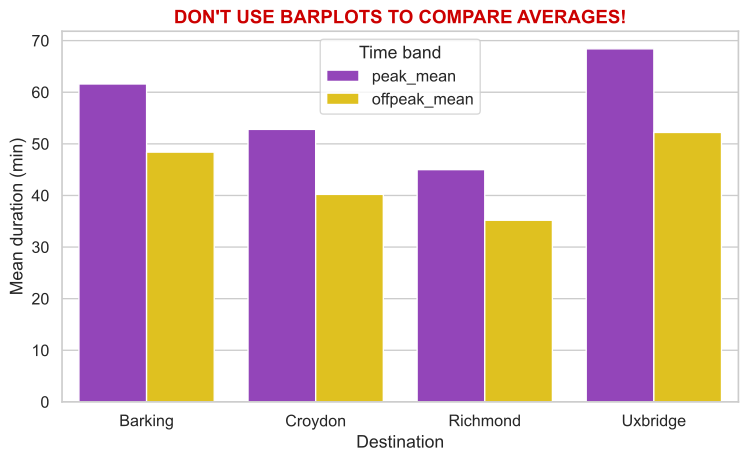
A bar plot of means hides the distribution. Two groups can have the same mean but wildly different spreads and you’d never know (Weissgerber et al., 2015).

# NOT THE BEST VISUALISATION FOR THIS DATA
sns.barplot(data=plot_df, x="destination",
            y="mean_duration_min",
            hue="time_band")

Bars are better for comparing proportions and counts, not averages. You can’t tell whether those 5 readings were tightly clustered or all over the place.

📖 Friends Don’t Let Friends Make Bad Graphs: see rule #1

🚫 DO NOT USE: boxplots when n is small
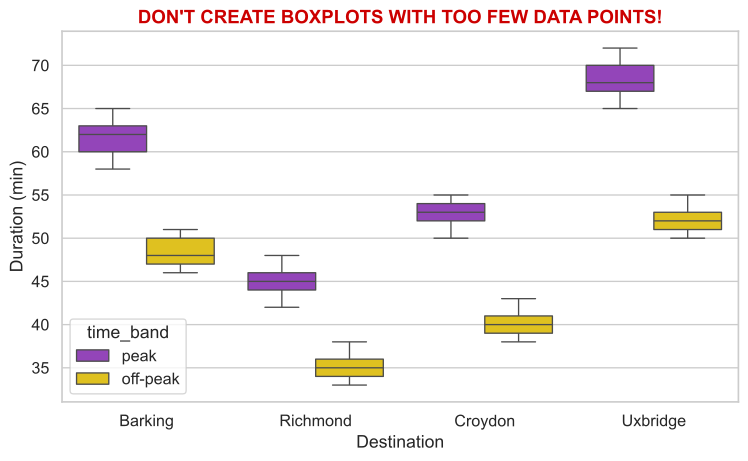
A boxplot shows median, quartiles, and whiskers — but quartiles only stabilise when n is large (roughly > 30–50). With n = 5 per group, the box is mostly noise.

sns.boxplot(data=df_all, x="destination",
            y="duration_min",
            hue="time_band")

Add or remove a single observation and the box, whiskers, and median line all shift dramatically. At this sample size the quartiles don’t represent the population.

📖 Friends Don’t Let Friends Make Bad Graphs: see rule #2

✅ Better: strip plot + summary overlay
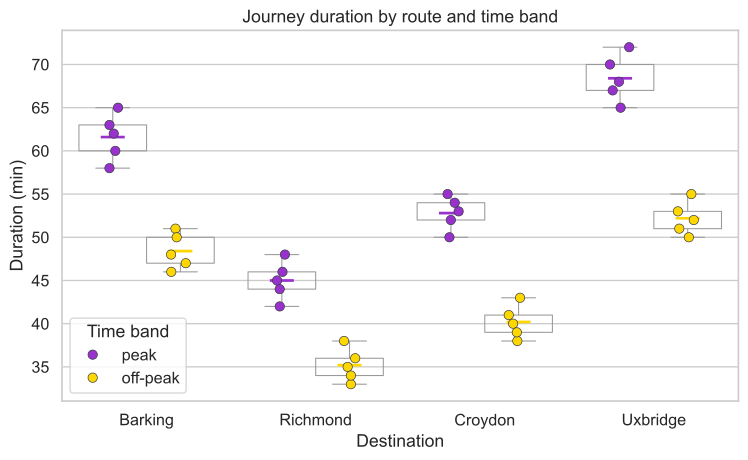
Show every data point, overlay a transparent box for spread, and add a horizontal marker for the mean.

sns.stripplot(data=df_all, x="destination",
              y="duration_min", hue="time_band",
              dodge=True, size=7, jitter=0.12)

sns.boxplot(..., boxprops=dict(
    facecolor="none", edgecolor="#999"),
    showfliers=False)

sns.pointplot(..., markers="_",
    markersize=18, linestyle="none",
    estimator="mean")

Every observation is visible. The faint box hints at spread without claiming stable quartiles, and the horizontal marker shows the group mean.

Rule of thumb: if n < 30, show every data point. We’ll dig deeper in 🖥️ W09 Lecture.

☕ Coffee Break

3️⃣ pivot() and pivot_table()

melt() goes wide → long.

What if you need to go long → wide? That’s what pivot() and pivot_table() do.

The pivot_table() cheatsheet

df.pivot_table(
    index="colA",
    columns="colB",
    values="colC",
    aggfunc="mean",
)
Parameter What it does
index Column whose unique values become row labels
columns Column whose unique values become column headers
values Column to place in the cells
aggfunc How to combine duplicates: "mean", "median", "count", lambda, or a custom function

Simple pivot(): when each cell has exactly one value

If your data has no duplicate combinations of index + column, pivot() works directly:

df.pivot(index="destination", columns="time_band", values="duration_min")

BEFORE (long, no duplicates)

destination time
_band
duration
_min
Barking peak 62
Barking off-peak 48
Richmond peak 44
Richmond off-peak 35

AFTER pivot()

destination off-peak peak
Barking 48 62
Richmond 35 44

Each time_band value became a column header. Each destination became a row.

What happens when there are duplicate values?

Your real data has multiple peak readings per route (you queried on different days). pivot() does not know which value to put in the cell.

df.pivot(index="destination", columns="time_band", values="duration_min")
# ValueError: Index contains duplicate entries, cannot reshape
destination time
_band
duration
_min
Barking peak 62
Barking peak 58
Barking peak 65

Three different peak readings for Barking. Which one goes in the cell?

destination peak
Barking 62? 58? 65?

pivot() refuses because there’s no single answer. This is where pivot_table() comes in 👉

pivot_table() handles duplicates with aggfunc

df.pivot_table(index="destination", columns="time_band",
               values="duration_min", aggfunc="mean")

BEFORE (long, with duplicates)

destination time_band duration_min
Barking peak 62, 58, 65, 60, 63
Barking off-peak 48, 51, 47, 50, 46
Richmond peak 44, 48, 42, 46, 45
Richmond off-peak 35, 38, 33, 36, 34

💡 I’ve simplified for the example, but imagine that in reality, we have 5 rows for each row above.

AFTER pivot_table(aggfunc="mean")

destination off-peak peak
Barking 48.4 61.6
Richmond 35.2 45.0

aggfunc="mean" told pandas: “when there are multiple values per cell, take the mean.”

Custom aggfunc: lambda and named functions

You’re not limited to "mean" or "median". You can pass your own function:

With a lambda:

df.pivot_table(
    index="destination",
    columns="time_band",
    values="duration_min",
    aggfunc=lambda x: x.max() - x.min(),
)

Computes the range (max − min) per cell.

With a named function:

def iqr(series):
    q75 = series.quantile(0.75)
    q25 = series.quantile(0.25)
    return q75 - q25

df.pivot_table(
    index="destination",
    columns="time_band",
    values="duration_min",
    aggfunc=iqr,
)

Any function that takes a Series and returns a single number works as aggfunc.

Melt ↔︎ Pivot: two directions of the same reshape

Wide format (good for summary tables)

destination off-peak peak
Barking 48.4 61.6
Richmond 35.2 45.0

Long format (good for seaborn plots)

destination time_band duration
Barking off-peak 48.4
Barking peak 61.6
Richmond off-peak 35.2
Richmond peak 45.0

Wide .melt() Long .pivot_table() Wide

Choose the shape that fits your next step: wide for readable tables, long for seaborn hue arguments.

4️⃣ pd.merge(): Connecting DataFrames on a Key

Your TfL data has postcodes. The ONS Postcode Directory has borough names, IMD ranks, and LSOA codes. merge() connects the two by matching on a shared column.

The merge() cheatsheet

pd.merge(
    df_left,
    df_right,
    left_on="colA",
    right_on="colX",
    how="left",
)

Use on="col" instead if both DataFrames share the same column name.

Parameter What it does
left_on Key column in the left DataFrame
right_on Key column in the right DataFrame
how "inner" keeps only matches; "left" keeps all left rows (fills NaN if no match)

Matching on a shared key

df_enriched = pd.merge(df_journeys, df_ons[["pcds", "oslaua", "imd"]],
                        left_on="destination_postcode", right_on="pcds", 
                        how="left")

LEFT: df_journeys

destination dest
_postcode
duration
_min
Barking IG11 7QJ 62
Richmond TW9 1DN 44
Croydon CR0 1NX 52

RIGHT: df_ons

pcds oslaua imd
IG11 7QJ E09000002 3421
TW9 1DN E09000027 29834
CR0 1NX E09000008 8734

AFTER pd.merge(..., how="left")

destination dest
_postcode
duration
_min
oslaua imd
Barking IG11 7QJ 62 E09000002 3421
Richmond TW9 1DN 44 E09000027 29834
Croydon CR0 1NX 52 E09000008 8734

The blue postcode was the matching key. The green columns came from the right DataFrame.

how="inner" vs how="left"

What happens when a postcode in your journey data doesn’t exist in the ONS file?

how="inner"
(only matches survive)

destination dest_postcode oslaua
Barking IG11 7QJ E09000002
Richmond TW9 1DN E09000027

⚠️ Croydon’s postcode wasn’t in the ONS file, so the row disappeared.

how="left"
(all left rows survive)

destination dest_postcode oslaua
Barking IG11 7QJ E09000002
Richmond TW9 1DN E09000027
Croydon CR0 1NX NaN

The row survived but the ONS columns are NaN because there was no match.

Recommendation for MP2: Use how="left" so you can see which postcodes failed to match. Then investigate why.

⚠️ When keys don’t match: the silent merge failure

Postcodes can look different in your TfL data vs the ONS file:

Your TfL data ONS file Will they match?
IG11 7QJ IG11 7QJ ✅ Yes
ig11 7qj IG11 7QJ ❌ No (case mismatch)
IG117QJ IG11 7QJ ❌ No (missing space)
CR0 1NX CR0 1NX ❌ No (leading/trailing spaces)

Fix both sides before merging:

df_journeys["dest_clean"] = (df_journeys["destination_postcode"]
                             .str.strip().str.upper().str.replace(" ", ""))
df_ons["pcds_clean"] = df_ons["pcds"].str.strip().str.upper().str.replace(" ", "")

Don’t go just by what AI is telling you: learn about string methods in the Pandas documentation.

Always verify after merging:

print(f"Rows before: {len(df_journeys)}, Rows after: {len(df_enriched)}")
print(f"Unmatched postcodes: {df_enriched['oslaua'].isna().sum()}")

What’s Next?

  • In the 💻 W08 Lab tomorrow, your class teacher will walk you through merging your own TfL data with the real ONS Postcode Directory, something that will help you build your ✍️ Mini-Project 2 NB02.

  • By the end of lab, you should have a working merge pipeline: data/raw/ → reshape → merge with ONS → save to data/processed/.

  • Week 09: EDA quality checks, mean vs median, correlation vs causation, plot_df refinement, and an introduction to something called closeread.

  • Week 10: ✍️ Mini-Project 2 deadline: Monday 23 March, 8 pm.